Top 5 Ways to Connect Housecall Pro With Other Tools to Automate Technician Workflows and Customer Communication
Publish Date
Apr 23, 2026
Housecall Pro is a cloud-based field service management platform that helps home service businesses schedule jobs, dispatch technicians, send invoices, and collect payments from a single dashboard. On its own, it handles the core operational loop, but connecting it to other tools is where the real efficiency gains happen.
When Housecall Pro talks to your accounting software, your calendar, your email marketing platform, and your broader tech stack, data stops sitting in silos. Technicians get the right information at the right time, customers hear from you automatically, and you stop doing the same data entry twice.
This guide covers the five most impactful ways to connect Housecall Pro with other tools, with specific setup steps and workflow examples. We've tested these integrations across client implementations and seen measurable reductions in admin time and missed follow-ups.
Key Terms
Housecall Pro: A cloud-based field service management platform for home service businesses. It includes scheduling, dispatching, invoicing, payment processing, and customer communication tools.
Zapier: An online automation tool that connects web applications through workflows called "Zaps." Each Zap pairs a trigger event in one app with an automated action in another.
QuickBooks sync: A one-way data transfer from Housecall Pro to QuickBooks Online or Desktop. It pushes invoices, customers, line items, and payments automatically.
Webhook: A method for one application to send real-time data to another when a specific event occurs. Housecall Pro supports webhooks for events like new payments and job updates.
API (Application Programming Interface): A set of rules that allows two software systems to exchange data programmatically. Housecall Pro's open API is available on the MAX plan.
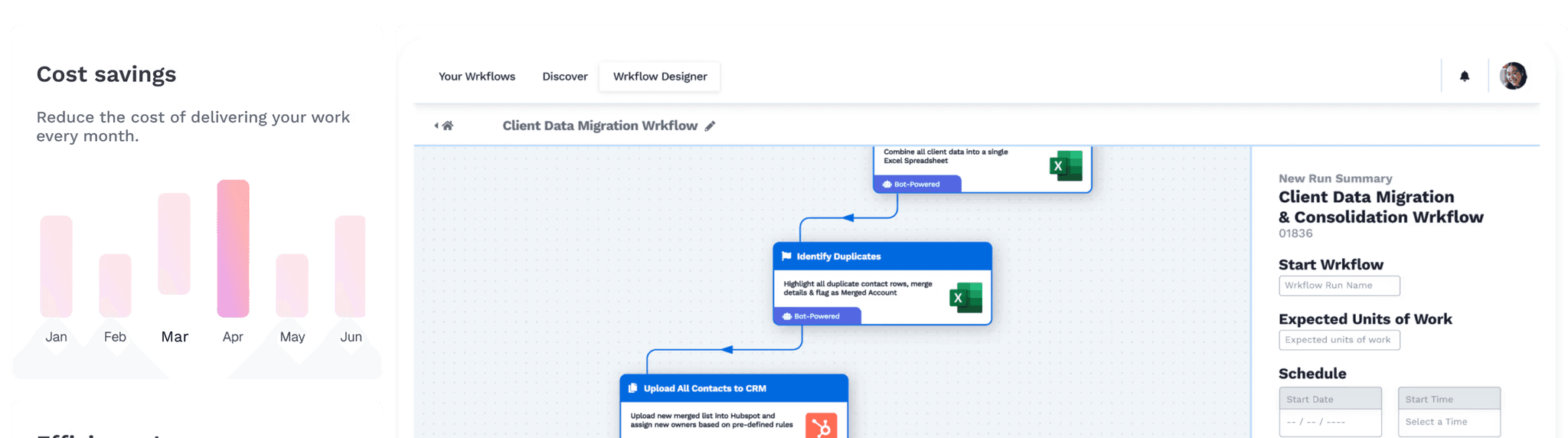
Wrkflow: A fully managed automation workflow built on the Wrk platform. Wrkflows combine AI, API connectors, RPA, and human-in-the-loop tasks to automate end-to-end business processes.
Trigger: An event in one application that starts an automated workflow. In Housecall Pro, common triggers include Job Scheduled and Job Completed.
Action: The automated task that executes after a trigger fires. Examples include creating a QuickBooks invoice or adding a customer to a Mailchimp audience.
Connect Housecall Pro to QuickBooks for Automatic Bookkeeping
The QuickBooks integration eliminates double data entry between your field service operations and your accounting system. Invoices, customers, line items, and payments push from Housecall Pro to QuickBooks automatically when a job is marked finished, invoiced, or paid.
Key Insight
The QuickBooks integration is only available on Housecall Pro's Essentials plan ($189/month) and above. Basic plan users at $79/month don't have access to this feature.
How the Sync Works
Housecall Pro supports both QuickBooks Online and QuickBooks Desktop. The integration is primarily one-way: data flows from Housecall Pro to QuickBooks.
For QuickBooks Online, data syncs automatically within 2 to 5 minutes of a triggering event. For QuickBooks Desktop, syncing happens through the QuickBooks Web Connector, which can run manually or on a scheduled interval.
What Data Syncs
The integration transfers invoices, customer contact information, line items, and payment records. Built-in error handling flags duplicates before they become a problem.
During initial setup, you can import existing QuickBooks data into Housecall Pro. This includes customers, invoice history, price book items, and tax rates.
Pro Tip
Before connecting the two systems, clean up your QuickBooks customer list. Housecall Pro only imports parent and second-level sub-customers. Third-level sub-customers and their associated invoices won't transfer.
Setup Steps
Navigate to My Apps by clicking the 3x3 grid icon in the top right of your Housecall Pro account. Search for QuickBooks Online or QuickBooks Desktop and click View Details.
Toggle the integration from Disabled to Active, then follow the on-screen guide to authorize access. You'll map default payment accounts during setup, even for payment methods you don't plan to use.
Business Impact
In our experience, teams that connect QuickBooks to Housecall Pro cut their weekly bookkeeping time by roughly half. The biggest win is eliminating manual invoice re-entry, which is both slow and error-prone.
Housecall Pro reports that connected businesses see real-time financial data without waiting for batch updates. Every payment collected in the field shows up in QuickBooks within minutes.
Use Zapier to Build Custom Automations Across Your Stack
Zapier connects Housecall Pro to over 7,000 apps, making it the most flexible integration path available. If Housecall Pro doesn't have a native integration with a tool you use, Zapier is likely the bridge.
Available Triggers and Actions
Housecall Pro currently offers two Zapier triggers: Job Scheduled and Job Completed. There's one available action: Create New Customer.
You can extend this with webhook-based triggers for events like New Payment, New Customer, and Job Updated. Webhooks give you more granular control, though they require a bit more setup.
High-Value Zapier Workflows for Field Service Teams
The most common workflow we've seen pushes scheduled job data to Google Sheets. This gives office managers a live log of all dispatched work without pulling reports manually.
Another high-impact Zap sends a Slack notification to your team channel whenever a job is completed. This keeps dispatchers, office staff, and owners informed in real time without checking the Housecall Pro dashboard constantly.
Example: Lead Capture to Customer Creation
When a Facebook Lead Ad is submitted, Zapier creates a new customer in Housecall Pro automatically. No manual entry, no missed leads.
Setup Steps
Activate Zapier in Housecall Pro under My Apps, then create a Zapier account and search for Housecall Pro. You'll need your Housecall Pro API key to authorize the connection.
Choose your trigger, test it against recent data, then configure the action in your destination app. Zapier walks you through field mapping so you control exactly what data transfers.
Pro Tip
Zapier access requires the Essentials or MAX plan. If you're on Basic, you won't see the Zapier integration in your App Store.
Limitations to Know
The two built-in triggers (Job Scheduled and Job Completed) cover most use cases, but they don't include estimate-level events. If you need to trigger workflows from estimate actions, you'll need to configure a webhook manually.
Zapier's free plan supports basic workflows, but more complex multi-step Zaps require a paid Zapier subscription. Factor this into your total integration cost.
Sync Housecall Pro With Google Calendar for Scheduling Visibility
The Google Calendar integration pushes jobs, estimates, and events from Housecall Pro to your Google Calendar. This is available on all Housecall Pro plans, including Basic.
What Syncs
Scheduled jobs, estimates, and internal events appear as calendar entries in Google Calendar. When a job's time or date changes in Housecall Pro, the corresponding calendar event updates automatically.
This is a one-way push from Housecall Pro to Google Calendar. Events created directly in Google Calendar won't appear in Housecall Pro.
Why It Matters for Technicians
Many technicians already live inside Google Calendar on their phones. This integration puts their job schedule where they're already looking, without requiring them to open the Housecall Pro app every time they want to check their day.
For business owners who manage personal and business schedules in one calendar, this integration prevents double-booking. You see your Housecall Pro jobs alongside personal appointments in a single view.
Key Insight
The Google Calendar integration requires web access to Housecall Pro. Field tech role employees can't configure this setting themselves; it needs to be set up from the admin account.
Setup Steps
Go to My Apps in your Housecall Pro account, find the Google Calendar app, and click View Details. Toggle it to Active and sign into the Google account you want to sync with.
Once connected, existing and new scheduled jobs will appear in your Google Calendar. You can choose which event types to sync during configuration.
Going Further With Zapier
If you need two-way sync or more advanced calendar automation, Zapier can bridge the gap. For example, you can trigger a new Housecall Pro customer record when a specific type of Google Calendar event is created.
This is especially useful for teams that take bookings through multiple channels. A calendar event from a phone call can automatically populate Housecall Pro with the customer's details.
Connect Mailchimp for Automated Customer Follow-Up and Marketing
The Mailchimp integration lets you sync customer data from Housecall Pro to Mailchimp audiences and send email campaigns directly from your Housecall Pro account. This is a native integration available on all plans.
What You Can Automate
The core workflow is syncing completed-job customers into a Mailchimp audience. From there, you can send seasonal promotions, maintenance reminders, and review requests without manually building email lists.
You can filter which customers sync based on tags in Housecall Pro. This means you can segment audiences by service type, location, or job status before they ever hit Mailchimp.
Creating Campaigns From Housecall Pro
Housecall Pro includes a built-in campaign builder connected to your Mailchimp account. You can name your campaign, choose an audience, write subject lines and body copy, and toggle your logo or online booking button on or off.
All campaign reporting lives inside Mailchimp. Open rates, click rates, and unsubscribes are tracked there, not in Housecall Pro.
Example: Post-Job Follow-Up Sequence
A Zapier workflow triggers when a Housecall Pro job is completed, then adds the customer to a Mailchimp audience tagged "Recent Service." That tag kicks off a three-email drip sequence: a thank-you email, a review request, and a seasonal maintenance offer.
Setup Steps
Navigate to My Apps in Housecall Pro and select Mailchimp. Authorize Housecall Pro to access your Mailchimp account, then choose which customers to sync.
For automated post-job syncing via Zapier, use the Job Completed trigger paired with the Add Subscriber action in Mailchimp. This runs automatically every time a technician marks a job done.
Business Impact
We've seen customer re-engagement rates climb significantly when follow-up emails go out within 24 hours of service. The combination of Housecall Pro's built-in review requests and Mailchimp's drip campaigns covers both reputation management and repeat business generation.
Without this automation, most home service businesses forget to follow up entirely. The work gets done, but the marketing loop never closes.
Use a Managed Automation Platform Like Wrk for End-to-End Workflow Automation
Zapier and native integrations handle point-to-point connections well, but they hit a ceiling when your automation needs span multiple systems, require conditional logic, or involve processes that don't have clean API endpoints. That's where a platform like Wrk comes in.
What Makes Wrk Different
Wrk combines API connectors, AI bots, RPA (robotic process automation), OCR, and human-in-the-loop tasks in a single platform. It's not a self-service tool; it's a done-for-you automation service.
You describe the process you want automated, and Wrk builds, monitors, and optimizes the workflow for you. This is especially valuable for field service businesses that don't have in-house technical staff managing integrations.
Key Insight
Wrk's platform can connect to Housecall Pro even where APIs aren't available, using vision-driven RPA that interacts with the software's interface the same way a human would. This covers legacy systems, portals, and applications that other integration tools can't reach.
Automation Workflows Wrk Can Handle
A common Wrkflow for field service teams automates the entire job-to-invoice-to-payment lifecycle. When a technician completes a job in Housecall Pro, the workflow generates an invoice, syncs it to QuickBooks, sends a follow-up email via Mailchimp, and updates a Google Sheets report, all without manual intervention at any step.
Another high-value workflow handles lead intake across channels. Wrk can monitor web forms, emails, and third-party lead sources, then create customer records and schedule jobs in Housecall Pro automatically.
When to Choose Wrk Over Zapier
Choose Zapier when you need simple, single-trigger automations between two apps you already know. Choose Wrk when your process has multiple steps, touches three or more systems, or involves data that requires interpretation before it can be routed.
Wrk is also the better fit when you don't want to maintain the automation yourself. Zapier workflows need monitoring and occasional repair when apps update their APIs. Wrk handles that maintenance as part of the managed service.
Pricing and Getting Started
Wrk charges a one-time setup fee starting at $1,000 to build your custom automation. After that, you pay per use, based on the volume of transactions processed. There are no per-seat licenses or monthly platform fees.
Wrk is SOC 2 Type II, HIPAA, and PIPEDA compliant, which matters for businesses handling customer payment data or personal information through automated workflows.
Comparison: Housecall Pro Integration Options at a Glance
Integration Method | Best For | Plan Required | Cost | Self-Service or Managed |
QuickBooks (Native) | Automated bookkeeping and invoice sync | Essentials ($189/mo) | Included with plan | Self-service |
Google Calendar (Native) | Scheduling visibility for techs and owners | Basic ($79/mo) | Included with plan | Self-service |
Mailchimp (Native) | Customer email marketing and follow-ups | Basic ($79/mo) | Included with plan | Self-service |
Zapier | Custom app-to-app connections | Essentials ($189/mo) | Free plan available; paid for multi-step | Self-service |
Wrk | End-to-end, multi-system automation | Any (uses API or RPA) | Starting at $1,000 setup; pay-per-use | Fully managed |
Start Here: Your Integration Checklist
Connect QuickBooks first. If you're on the Essentials plan or above, this is the highest-ROI integration. Eliminating manual invoice entry pays for itself within the first month.
Activate Google Calendar sync. It takes under five minutes, it's free on every plan, and it immediately gives your technicians better daily visibility.
Set up Mailchimp for post-job follow-ups. Sync your completed-job customers and build a simple drip campaign. Even one automated email after service increases repeat bookings.
Build your first Zapier workflow. Start with a Job Completed trigger that logs data to Google Sheets. Once you see the value, expand to Slack notifications, CRM updates, or SMS alerts.
Evaluate Wrk for complex, multi-step automation. If you're spending more than five hours a week on tasks that span multiple systems, a managed automation platform will reclaim that time at a lower cost than hiring.
Frequently Asked Questions
What integrations does Housecall Pro support natively?
Housecall Pro offers native integrations with QuickBooks Online, QuickBooks Desktop, Google Calendar, Mailchimp, and several lead generation platforms including Angi and Thumbtack. For additional connections, Housecall Pro integrates with Zapier on Essentials and MAX plans, giving access to thousands of third-party apps. The MAX plan also includes open API access for fully custom integrations.
Do I need a specific Housecall Pro plan to access integrations?
Yes, integration availability depends on your plan. The Basic plan ($79/month) includes Google Calendar and Mailchimp but excludes QuickBooks and Zapier. The Essentials plan ($189/month) adds QuickBooks sync, GPS tracking, and Zapier access. The MAX plan ($329/month) includes everything plus open API access for custom integrations.
Can I connect Housecall Pro to my CRM?
Housecall Pro doesn't offer a native CRM integration, but you can connect it to Salesforce, HubSpot, or other CRMs through Zapier. A common workflow uses the Job Completed trigger to create or update CRM records automatically. For more advanced CRM syncing, the MAX plan's open API allows direct, custom integration with any CRM that accepts API calls.
How does the Housecall Pro and QuickBooks integration work?
The integration syncs invoices, customers, line items, and payments from Housecall Pro to QuickBooks automatically. Data flows one way, from Housecall Pro to QuickBooks, and syncs within 2 to 5 minutes of a job being marked finished, invoiced, or paid. You can also import existing QuickBooks customers, price lists, and invoice history into Housecall Pro during initial setup.
What Zapier triggers are available for Housecall Pro?
Housecall Pro currently supports two Zapier triggers: Job Scheduled and Job Completed. There's one available action: Create New Customer. You can also use webhook-based triggers for additional events like New Payment, New Customer, and Job Updated. These triggers connect Housecall Pro to any of the 7,000+ apps in Zapier's library.
Can I automate customer follow-up emails after a job is finished?
Yes, and there are two approaches. Housecall Pro has built-in automated review request emails that send after job completion. You can also use a Zapier workflow that triggers when a job is completed and automatically adds the customer to a Mailchimp audience for follow-up campaigns, seasonal promotions, or maintenance reminders.
Is there a way to automate Housecall Pro workflows without Zapier?
Automation platforms like Wrk can connect Housecall Pro to other systems using API connectors, RPA bots, and AI, all within a single managed platform. Unlike Zapier, which requires you to build and maintain workflows yourself, Wrk offers a fully managed service. You describe the process, and Wrk builds, monitors, and optimizes the automation for you.